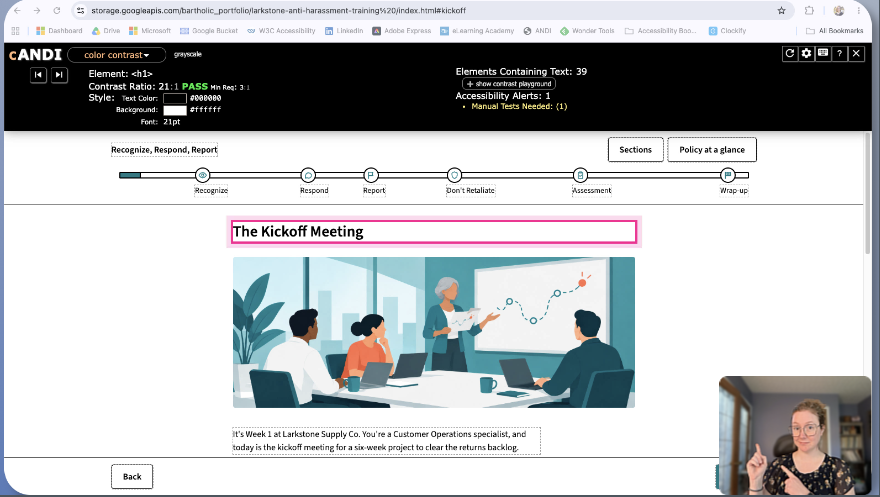
In my last post I introduced 5 simple checks all eLearning and other digital content creators can use to make more accessible content with fewer barriers, without using any special tools. (Don’t worry – 5 more simple checks are coming soon!)
In this post, I want to discuss the “hidden barriers”.
I call them “hidden”, because while they would be very apparent to anyone using assistive technology, sighted creators checking their content without assistive technology would not see these issues with their eyes.
If everything “looks” good, great! If everything “looks” good, great! But that’s only a small part of what accessibility checking can reveal. ANDI (Accessible Name and Description Inspector) can help reveal these barriers.
If you’re interested in giving it a shot, add ANDI to your bookmarks bar: ANDI Accessibility Testing Tool Install Website. This site also has some great tutorials to help you learn to use ANDI.
If you prefer watching a tutorial video, check out my most recent video Testing Web-Based eLearning with ANDI on YouTube.
Color Contrast
ANDI can identify whether text meets WCAG (Web Content Accessibility Guidelines) Level AA color contrast requirements. Level AA (color contrast requirements are the same in WCAG 2.0, 2.1, and 2.2).
ANDI tests the color of text against the color of a plain background. Minimum WCAG requirements are that all regular text should be at least a 4.5:1 ratio and large text (18pt regular or 14pt bold or larger) at least a 3:1 ratio.
Any text that is overlaid on an image or gradient will need to be manually tested. Luckily, ANDI has a tool for that! You can use the color picker to select the areas to test, and ANDI will give you the contrast.
If you have light text, check it against the lightest part of the background image. If you have dark text, check it against the darkest part of the image. Always check the test against multiple spots on any images.

Headings & Lists
If it looks like a heading, is it a heading? Maybe. One way to check on web content is to use ANDI to inspect structures. You can check that all headings are not just visually styled, but are also semantic headings. This means that assistive technology will be able to interpret your headings as headings. Assistive technology can be used to navigate a page by headings, and headings help to organize content.
The page title should be a level 1 heading, or <h1>. Sections under the main heading should use level 2 headings, or <h2>. Subheadings under the <h2> subheadings should be level 3 headings, or <h3>. Think about how your content is structured and make sure the heading hierarchy supports the understanding of your content.
Lists also need to be semantically programmed, not just visual lists. Bulleted lists are usually unordered lists, or <ul>. Numbered lists are usually ordered lists, or <ol>. Each list item is programmed as <li>. If you have content that looks like a list, but isn’t recognized as a list, that’s a barrier.

Links & Buttons
Is it a link, or is it a button? A link usually moves the learner to a new location, an external website, a downloadable resource, or an anchor jump on a page. A button usually changes the current page’s state, like opening a dialogue box, submitting an answer, or advancing through a course.
Links are often visually styled to look like buttons. If you are clear and consistent with your content, that can be accessible. But make sure if it acts like a link, it’s programmed like a link.
“Skip to main content” links often look like buttons, but should be programmed as links since they navigate to a different section of the page, but don’t change the page.
ANDI will list all links and buttons in the links/buttons module, and reveal their output. The accessible name should describe the purpose of the link or button, and usually matches its visible text.

Form Fields & Radio Buttons
Radio buttons might have the word button as part of their name, but they are actually considered a form field. Individual radio buttons are linked together in a radio group.
It’s important to note that buttons and radio buttons don’t just look different, but they behave differently. When navigating with a keyboard, tab will move between buttons on a page. Tab will move into a radio button group, where arrow keys allow the learner to move between and select options. Once a radio button is selected, the learner should be able to use a separate “Submit” button to confirm their answer before any feedback or progression is triggered.
Form fields also include text entry boxes, checkboxes, dropdown menus, toggle switches, file uploaders, and date and time pickers.
The focusable elements module on ANDI will help to identify any forms on your page. Every form field should have an accessible name that identifies its purpose. ANDI can also help you inspect associated labels, instructions, and information about the type and state of the field.

Alternative Text
I hear a lot of talk about alternative text, or alt text. I am thrilled that it is common knowledge that missing alternative text is an accessibility barrier. But creating alt text is also a cause for a lot of confusion. And AI rarely creates appropriate alternative text.
I’ll do a full post just on alt text in the future, but for now just know that alternative text depends on the context in which the image is used.
Sometimes images should be marked as decorative, which means they don’t need to be announced by assistive technology. (But don’t go hiding images just because you don’t want to write alt text!)
Opening the graphics/images module in ANDI will reveal the alt text. Images that are not decorative and are missing alt text may be announced as just “image” or the actual file name. Having a screen reader announce a file name like “screenshot 2025-10-2 at 3:57:01PM” is not only incredibly frustrating, but also creates a barrier to necessary content in your course.

What ANDI Isn’t
ANDI isn’t a guarantee that your content is accessible.
ANDI isn’t going to fix your content for you.
ANDI isn’t going to catch everything.
ANDI is not going to check the accessibility of non-web-based content.
ANDI isn’t the only tool that can help identify accessibility barriers.
Sometimes ANDI will bring up warnings that aren’t actually accessibility barriers. Sometimes ANDI will miss things that are.
So why did I just write a blog post about checking your web-based eLearning content using ANDI?
What ANDI Is
ANDI is one tool that can help you find barriers.
It’s a browser bookmarklet that can inspect web pages and identify potential accessibility issues related to the Web Content Accessibility Guidelines (WCAG) and Revised Section 508.
ANDI is one way to help reveal the accessibility information available to assistive technologies. It’s especially helpful if you’ve vibe-coded your content but aren’t sure how to inspect the code for accessibility.
ANDI is just one more tool in your toolbag that you can use to check your web-based content.
Closing Thoughts
Tools like ANDI can really open some doors for learning designers to create more accessible content. Tools like Claude Code can respond well to prompts to fix accessibility barriers, but only if the human using the tool knows what the issues are.
And that’s really the point of this series. You don’t need to know everything about accessibility to start identifying barriers in your content. But you do need to know what to look for.
The more you learn to recognize these barriers, the more you can incorporate accessibility into your development process instead of treating it as something to check at the very end.
These five checks are just a starting point. I’ll continue sharing other tools and manual testing techniques that can help you understand how people experience the content you create.
And remember, passing an automated accessibility check doesn’t necessarily mean someone can successfully use your course. Keep learning from people with disabilities who share their experiences with digital content, and use that knowledge to inform your design decisions.
Leave a Reply